

How to use Cuugo
A walkthrough of every part of Cuugo - searching and filtering, reading a product, swapping to a cheaper equivalent, building a priced shopping list, setting a budget, and getting emailed when something you buy drops.
Our guide to comparing prices covers the method. This one covers the buttons: what everything in Cuugo does, in the order you'd normally meet it.
Everything below works on a free account unless it says otherwise.
1. Search
Type a product, brand or category into the box at the top of any page.

You don't need to be precise. "Milk" is fine; so is "a2 lactose free". There's also a Scan button that reads a barcode straight into the search, which is the fastest way to check whether the thing already in your trolley is a good price.
2. Narrow the results
Search for something common and you'll get hundreds of results. The Filters button cuts them down:
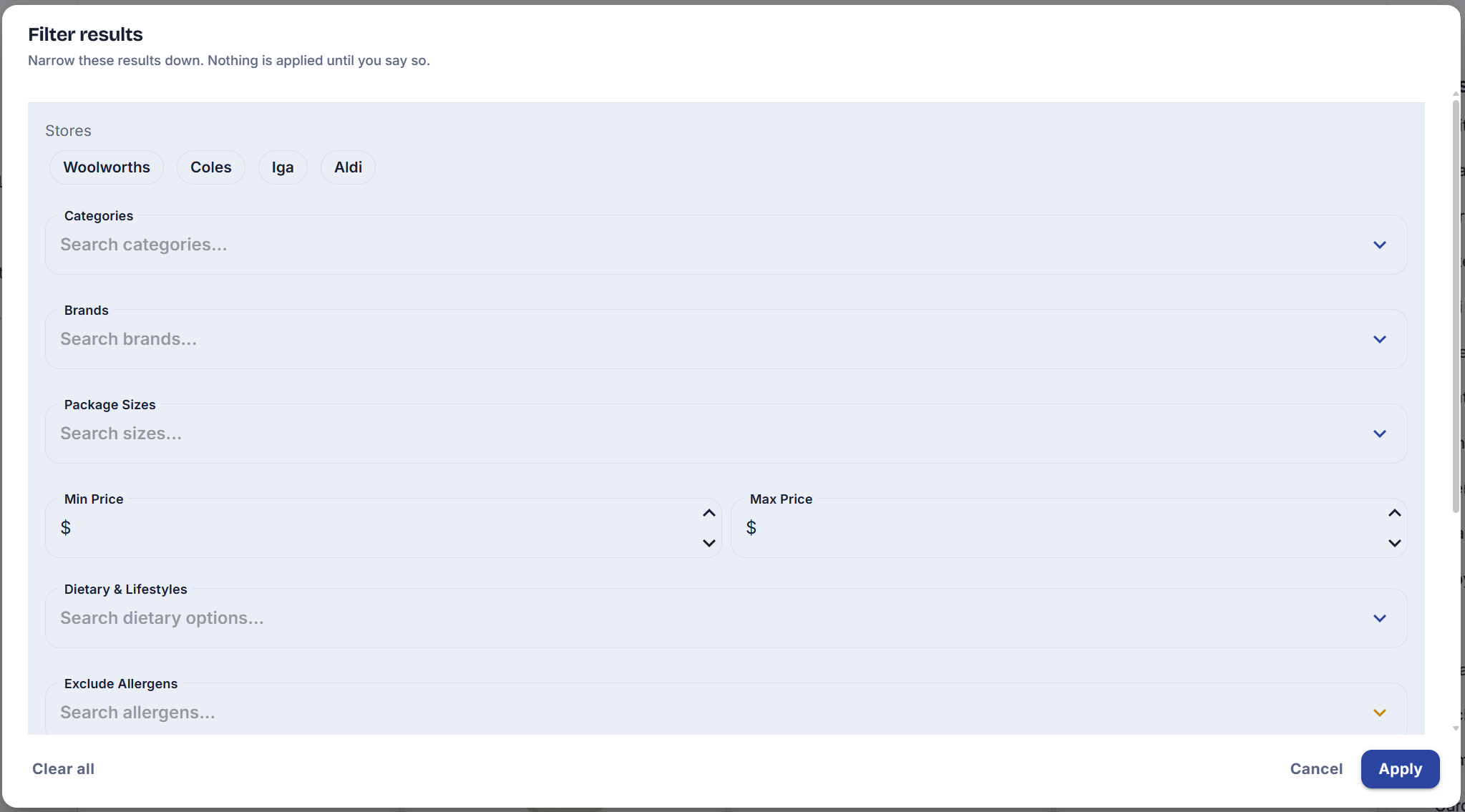
- Stores - tick Woolworths, Coles, Aldi or IGA to see only what you can actually buy where you shop.
- Categories, Brands, Package Sizes - type to search each list rather than scrolling it.
- Min / Max price - a hard ceiling, useful with a budget.
- Dietary & Lifestyles - gluten free, vegan and so on.
- Exclude Allergens - the one filter that removes rather than includes. Treat it as a helper, not a medical safeguard: it works from the data retailers publish, and you should still read the label.
- Key Ingredients, and toggles for In Stock Only, On Sale Only and Own Brand Only with a count beside it.
Nothing applies until you press Apply, so you can set several filters up before the page reloads. Clear all resets them.
3. Read a product page
A product page is one product at one store. The panel that matters is this one:
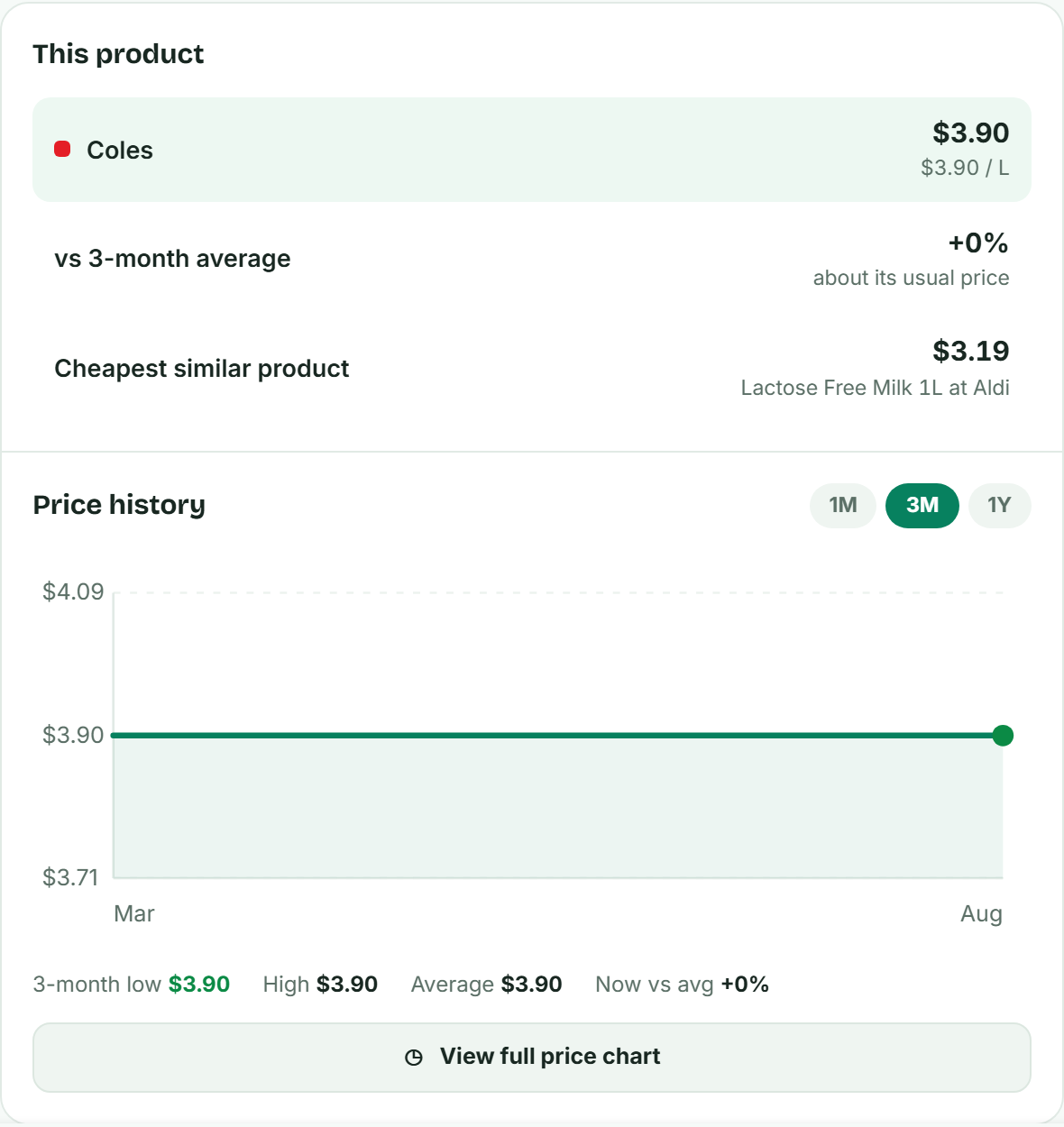
- The price and the unit price. The per-litre or per-kilo figure is the one that's comparable with anything else.
- vs 3-month average. Whether today is genuinely cheap or just labelled cheap.
- Cheapest similar product. The best equivalent anywhere else we track, named, with its store.
- Price history over one, three or twelve months.
4. Find a cheaper swap
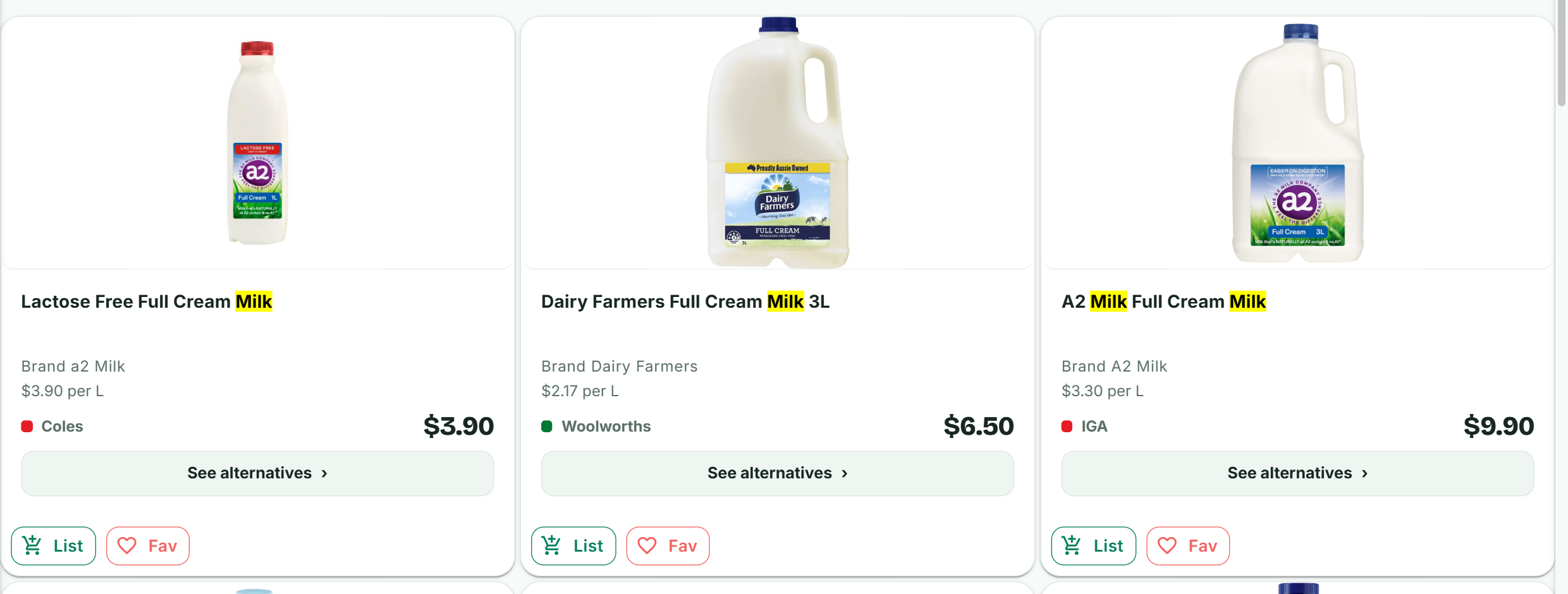
See alternatives takes the product you're looking at and finds similar ones at every store, sorted by price per unit:
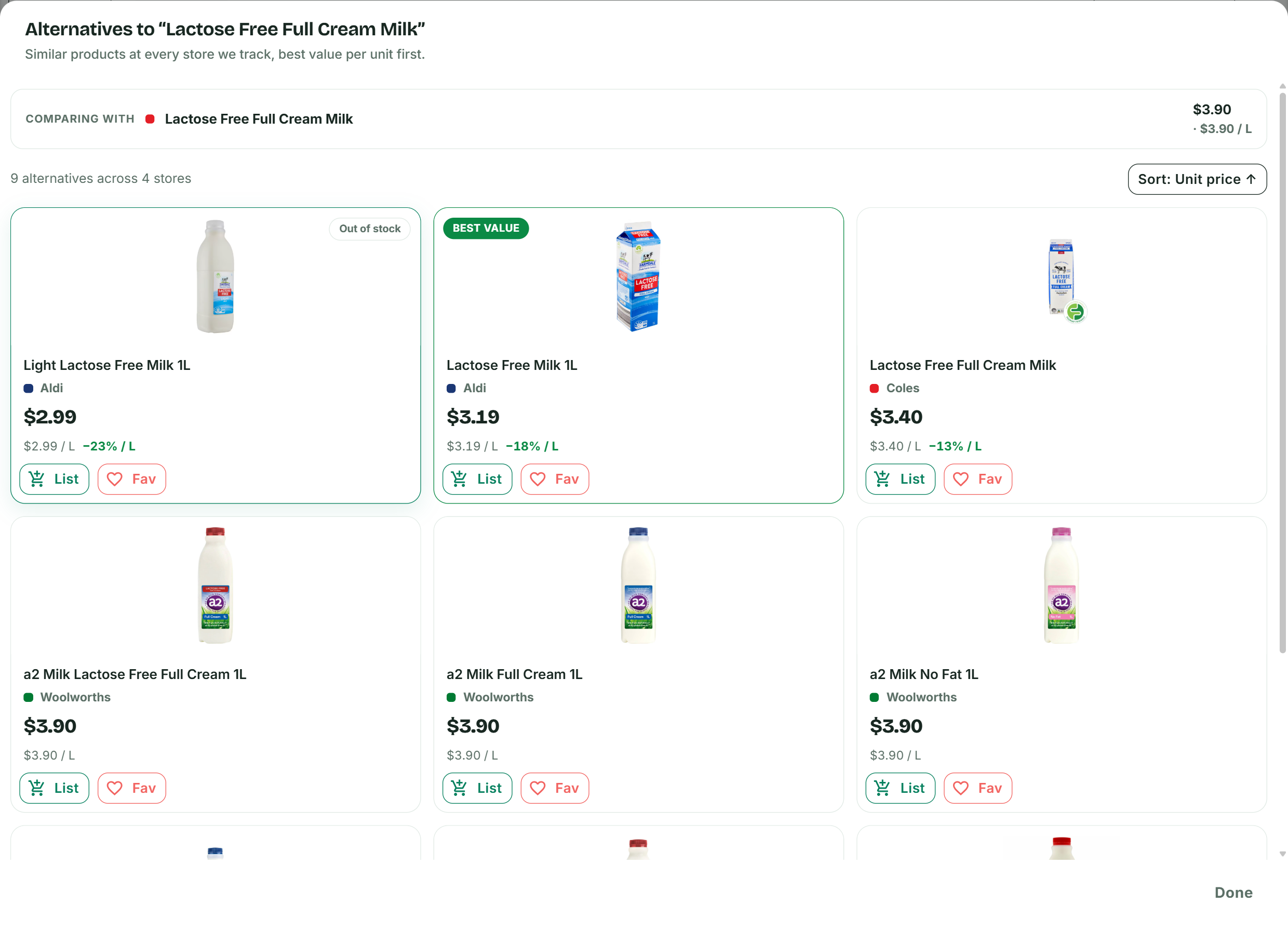
The percentages are per unit, not per pack - so a cheaper pack that holds less won't be shown as a saving.
5. Build a shopping list
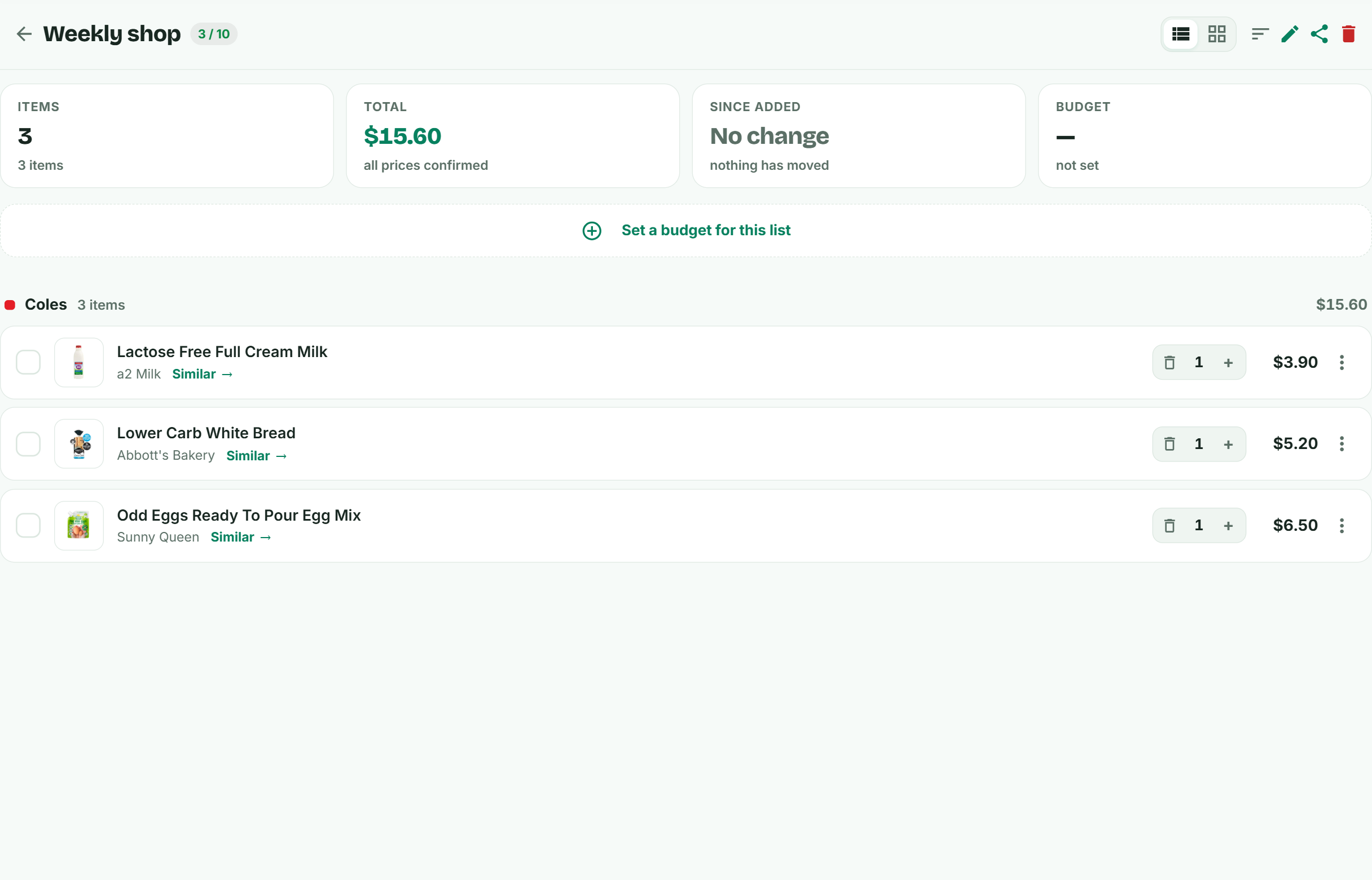
Every product card has a List button. It opens a small dialog: pick an existing list, or create one. Your list then looks like this:
Reading across the top:
- Items and Total - the total re-prices itself as prices move, so a list you built a fortnight ago shows today's cost, not the cost when you built it.
- Since added - how much the list has moved since you put it together. "No change / nothing has moved" when nothing has.
- Budget - see below.
Items are grouped under the store that sells them, with a subtotal per store, so a list that spans two stores shows you what each trip costs. Every row has a quantity stepper, a tick-off checkbox for shopping day, and a Similar → link straight into the alternatives for that item.
6. Set a budget
Set a budget for this list takes an amount and a period - weekly, fortnightly or monthly. The list then tracks itself against it, so going over shows up while you can still do something about it rather than at the checkout.
You can also set a budget at the moment you create a list; it's optional in the same dialog.
7. Add a whole basket in one go
Our Weekly Essentials posts price a themed basket - school lunchboxes, mid-week dinners - across all four supermarkets. At the bottom of each one:
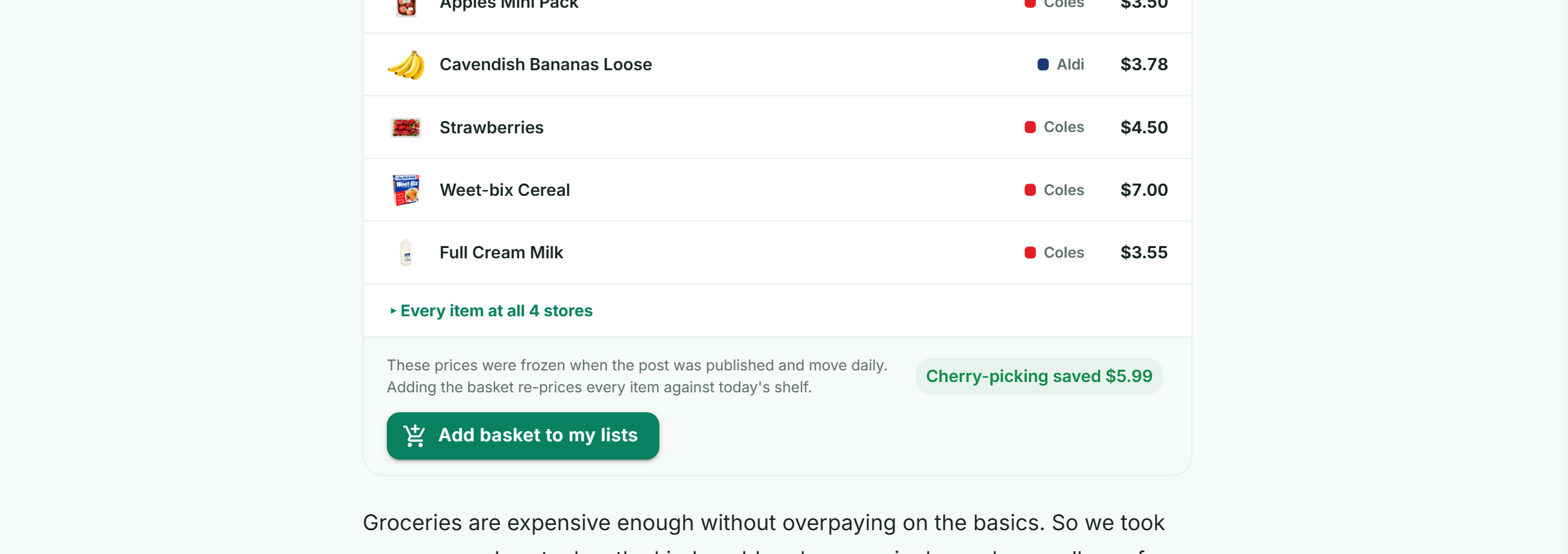
The prices shown in the post are frozen at publication so the article stays honest about what it found that day. Adding the basket re-prices every item against today's shelf, so what lands in your list is current, not historical.
8. Watchlists and price alerts
A watchlist is for things you're not buying today but would buy at the right price. The Fav button on any product card adds it.
Then turn on notifications for the list, and Cuugo emails you when something on it moves. In Profile → notification settings you choose how often:
- Immediate - soon after a price changes
- Daily, Weekly or Monthly - batched
- Never - off
Daily is the default. Immediate suits a small watchlist of expensive things; on a fifty-item shopping list, daily is calmer.
The same works on shopping lists, which is the more useful case for most people: you get told when something you were going to buy anyway has dropped.
9. What's free and what isn't
Search, filters, product pages, price history, alternatives and the price index are free and don't need an account.
An account adds shopping lists, watchlists, budgets and price alerts. The free plan includes one shopping list and one watchlist with item limits; paid plans raise the number of lists, the items per list, and how many people you can share a list with. The list header shows your usage - 3 / 10 means three items of ten used.
Where to start
If you do one thing: search for the three or four items you buy every single week and look at the unit price rather than the sticker. That's where the money is, and it takes about two minutes.
Frequently asked questions
Do I need an account to use Cuugo?
No. Search, filtering, product pages, price history, the Alternatives comparison and the weekly price index all work signed out. An account is only needed for shopping lists, watchlists, budgets and price alerts.
How do I get an email when a price drops?
Add the product to a shopping list or watchlist, turn on price-change notifications for that list, and set how often you want to hear in your profile settings — immediate, daily, weekly, monthly or never. Daily is the default.
Does my shopping list total update by itself?
Yes. The total re-prices against current prices rather than the prices at the time you added each item, and the list shows how much it has moved since you built it.
Can I add a whole basket from one of your articles to my list?
Yes. Weekly Essentials posts have an "Add basket to my lists" button. The prices printed in the article are frozen at publication, but adding the basket re-prices every item against today's shelf.
Can I filter search results to just one supermarket?
Yes. Open Filters and tick the stores you shop at. You can combine that with category, brand, pack size, price range, dietary preferences, allergen exclusions, and in-stock or on-special toggles. Nothing applies until you press Apply.
How many shopping lists can I have on the free plan?
One shopping list and one watchlist, with a cap on items in each. Paid plans increase the number of lists, the items per list, and sharing.